
New API Channel Management
🧪 This feature is currently in Beta, designed to condense the most common channel operation actions (creation, parameter tuning, synchronization) into the plugin, eliminating the need to frequently navigate back and forth to the New API backend.
Feature Overview
- 📋 Channel Overview and Filtering: View the name, type, group, priority, weight, and status of all channels at a glance, supporting keyword search and multi-tag filtering.
- ✏️ Quick Create / Edit: The pop-up form uses the New API field definitions, allowing one-time configuration of the model list, group, priority, weight, and status.
- 🔄 Single Channel Synchronization: When debugging model synchronization, you can directly trigger "Sync This Channel" for a specific channel within the list, complementing batch synchronization.
- 🗑️ Secure Deletion: Confirmation is required after batch selection before deletion is triggered, preventing accidental deletion of production channels.
- 📦 Seamless Export: Linked with Key Management, channels can be exported immediately after creation to CherryStudio, New API, or CC Switch.
Prerequisites
| Configuration Item | Description |
|---|---|
| New API Base URL | The accessible backend address, e.g., https://example.com |
| Admin Token | Admin Token with channel read/write permissions |
| Admin User ID | User ID corresponding to the token |
In the plugin, open Settings → Basic Settings → New API Integration Settings, fill in the above information, and save. If the configuration is missing, the channel management page will display a "Configuration Missing" prompt.
How to Access the Feature Page
- Open the extension pop-up and click "Settings" on the left.
- On the Settings page, select "New API Channel Management (Beta)" below the top title, or click the "Manage Channels" button in Basic Settings.
- If the configuration is correct, the remote channel list will load automatically.
Channel List View
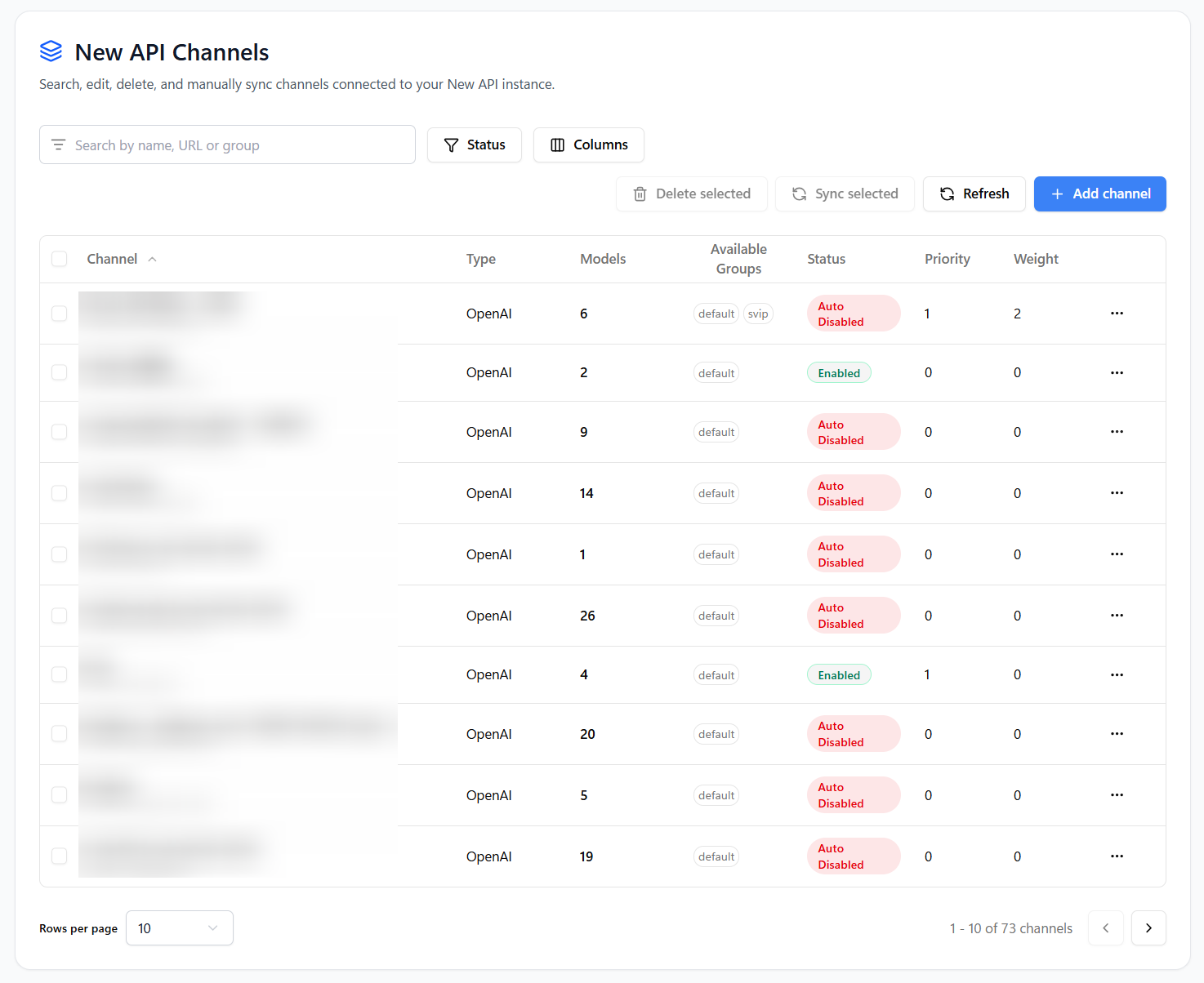
Search Box: Supports fuzzy search by Name / Base URL / Group keyword.
Status Filter: The
Statusfilter in the upper right corner allows quick viewing of enabled, manually paused, or automatically disabled channels.Custom Columns: Use the column selector to control whether columns like Base URL, Group, and Priority are displayed.
Batch Operation Bar: Check the box before a row to enable batch deletion.
Creating or Editing Channels
- Click "Add Channel" in the upper right corner or select "Edit" from the row-end menu.
- Fill in the pop-up window:
- Basic Information: Name, Type, API Key, Base URL.
- Model List: Supports select all, invert selection, clear, and manual input of custom models.
- User Group: Automatically reads groups from the New API backend, or can be customized.
- Advanced Settings: Priority, Weight, Status (Enabled/Disabled).
- After clicking "Save", the system calls the New API
POST/PUT /api/channelinterface, and the list automatically refreshes upon success.
Field Validation
- Channel Name and API Key are required (can be relaxed during editing based on requirements).
- Some types (e.g., Huoshan, Suno) require a Base URL.
- Fields that fail validation will prompt the reason; submission failures will display a toast notification in the upper right corner.
Single Channel Synchronization
If you are debugging in conjunction with New API Model Synchronization, you can click the "Sync" button at the end of the row in the list to trigger model redirection generation and retry only for the current channel, facilitating quick verification.
Deleting Channels
- Check the channels to be deleted and click "Delete".
- The
DELETE /api/channel/{id}call is only made after confirmation in the pop-up window. - If an error is returned (e.g., insufficient permissions), the interface will display the detailed information returned by the backend.
Advanced Tips
- Using Model Whitelists: First set the whitelist on the model synchronization page, then return to the channel page to sync individually, ensuring the new channel only includes the required models.
- Priority and Weight:
- Priority (
Priority): A higher number means higher priority; channels with higher priority will be used first. - Weight (
Weight): Among channels of the same priority, requests are distributed according to the weight ratio.
- Priority (
- Batch Export: After saving the channel, you can push it to CherryStudio / CC Switch with one click in the Key Management → Export panel, avoiding repetitive input.
Frequently Asked Questions
| Issue | Solution |
|---|---|
| The channel list is empty | Check if the New API configuration is complete or if the network can access the backend. |
| 401/403 error upon saving | Ensure the Admin Token has channel write permissions; regenerate the Token if necessary. |
| Model/Group list is empty | The plugin still allows manual input; try saving the configuration again in Settings → New API Integration. |
| Clicking sync yields no response | Please check if the browser has disabled background scripts, or confirm that the global sync function is working correctly on the Model Sync page. |
Related Documentation
- New API Model List Synchronization: Automatically batch syncs channel models.
- Quick Export and Integration: Learn how to push channels to downstream applications.